

Web client / live chat
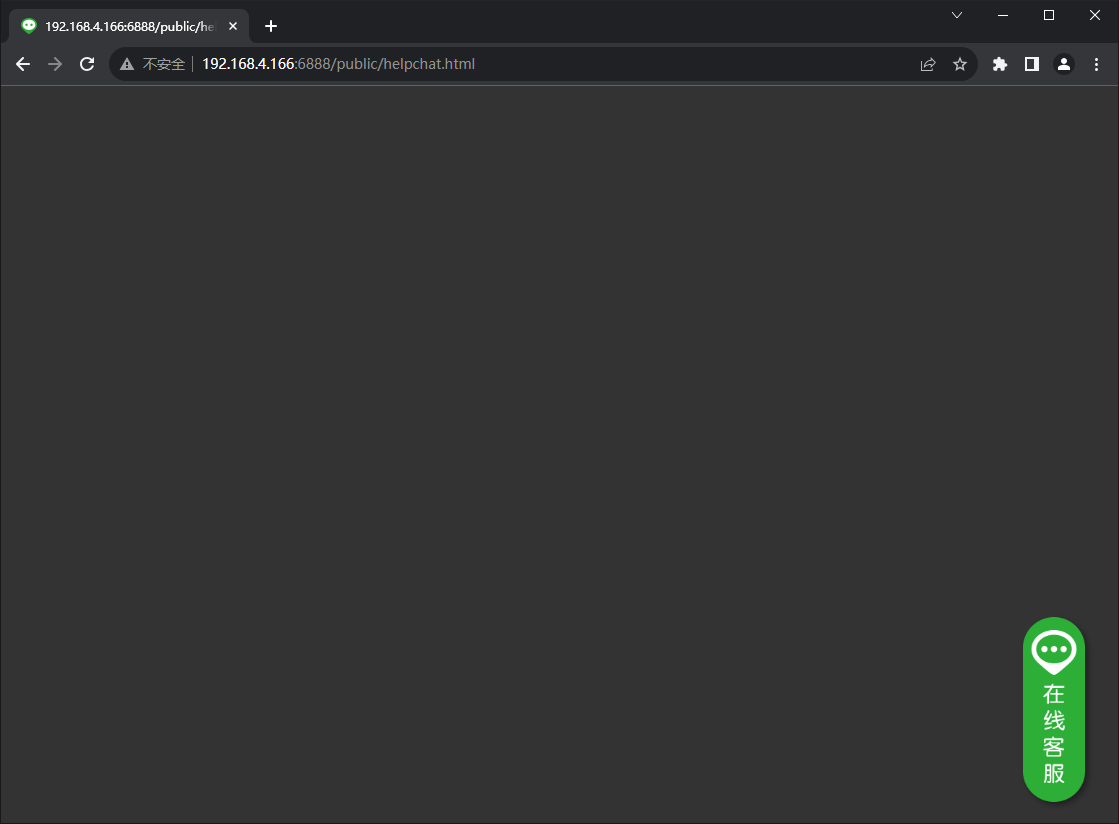
The HelpChat web interface is for customers who have their own website. Website visitors send messages, images and files from the web page and chat with HelpChat clients, on the desktop or in the mobile app. See the figures below:
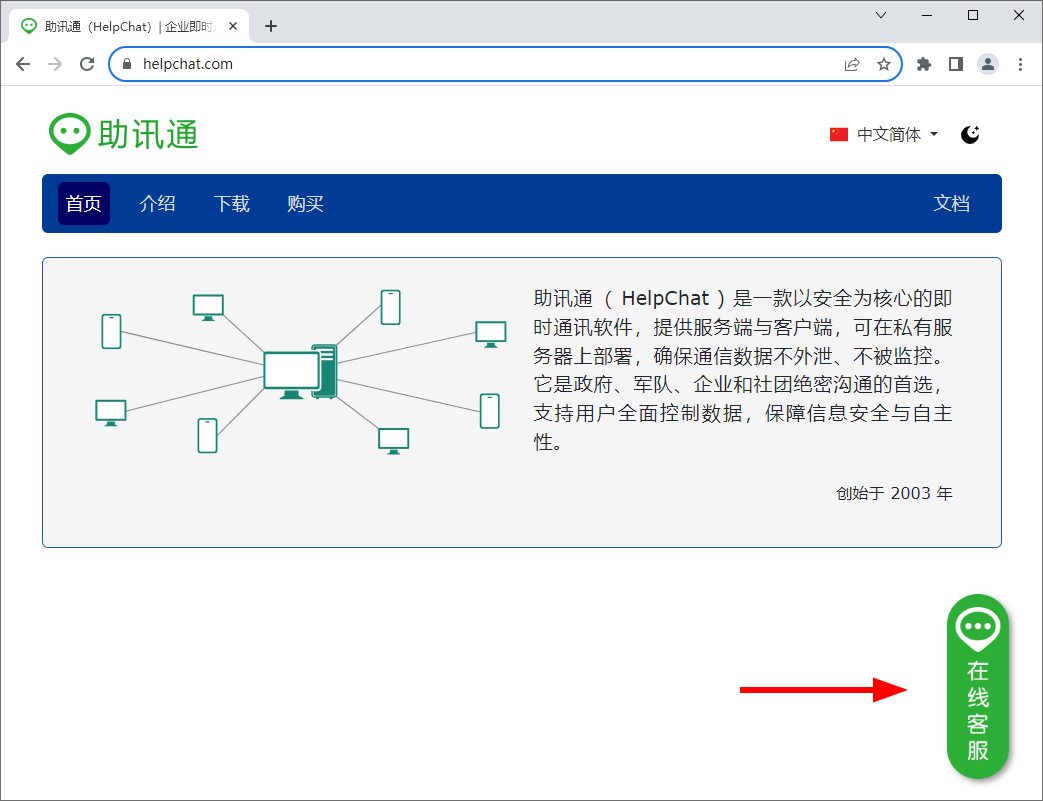
Figure 1: Embedded in a website with one line of code, the page shows an icon at the lower right (the icon and its position can be customized, see the second half of this page)
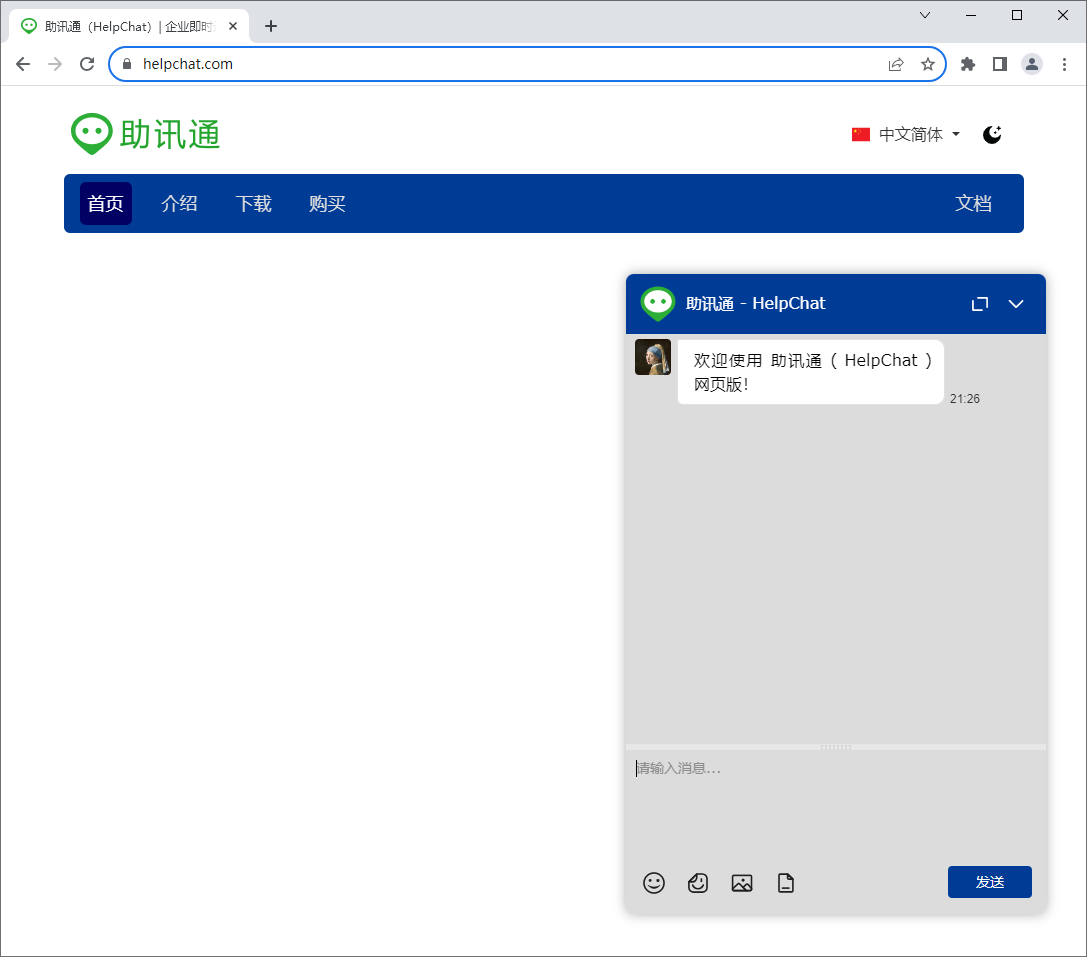
Figure 2: Clicking the icon opens a chat window
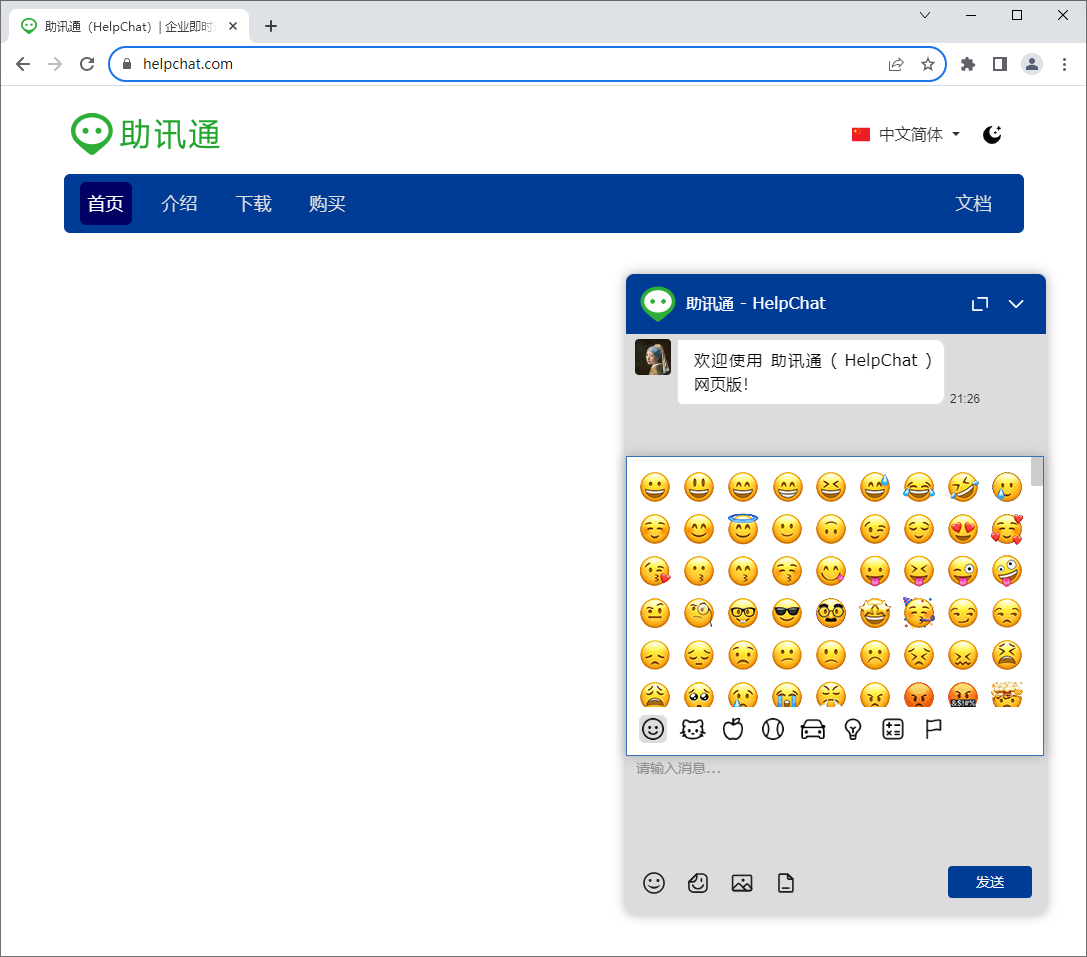
Figure 3: The chat window supports emoji, animated stickers, images and files
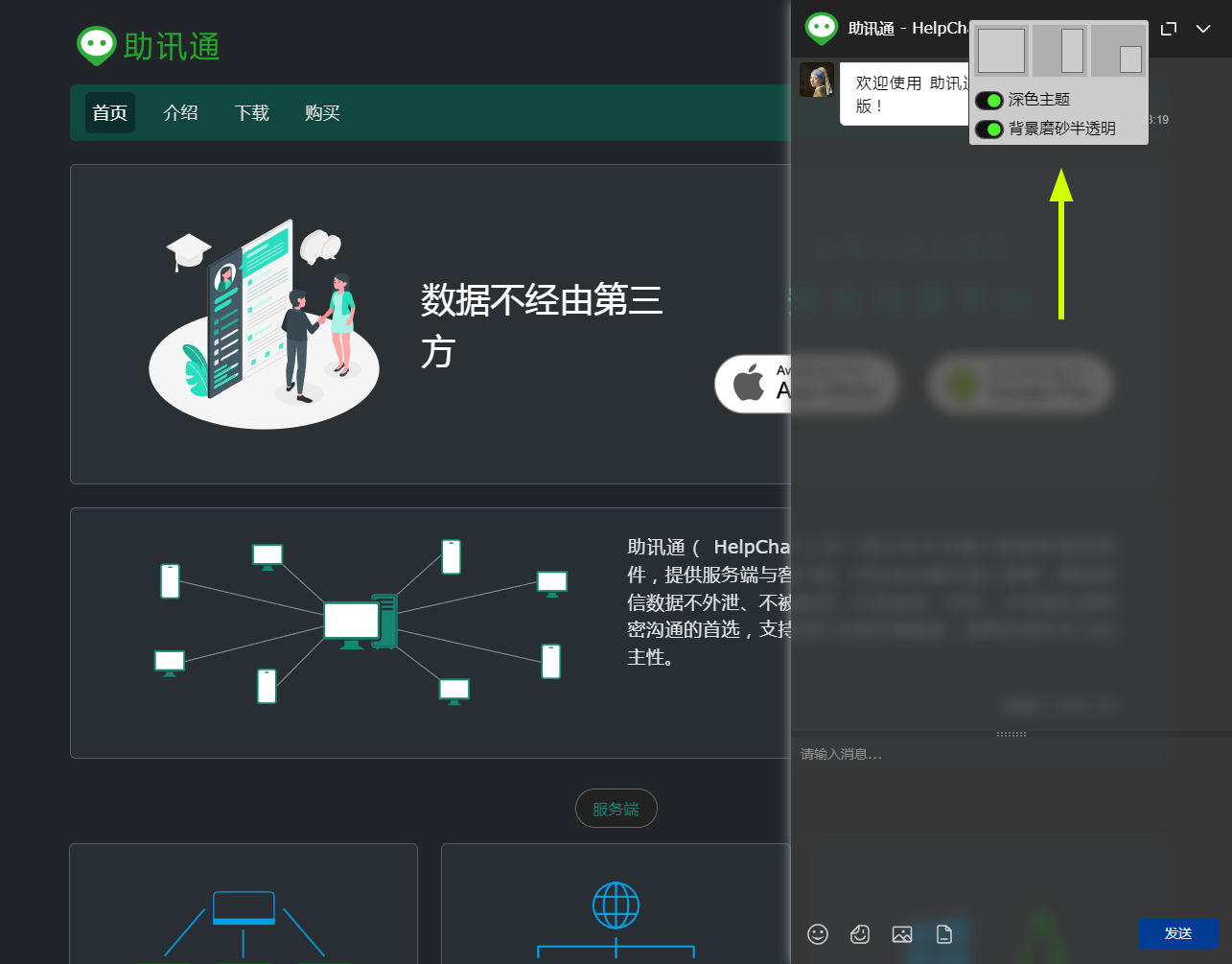
Figure 4: At the top right of the chat window, you can switch between three window sizes and positions on the page, change the theme color and turn the frosted transparent background on or off
Deploy web live chat
Note: The following steps apply to both Windows and Linux servers. Web live chat can be deployed on any system that can run HelpChat Server.
After HelpChat Server is installed, go to the following directory. Its subdirectories and files are shown below:
C:\HelpChat Server\public
On Linux the directory is the same: the public directory under the server root. Every directory and file mentioned below also exists at the same level in the Linux package, and the setup is the same as on Windows.
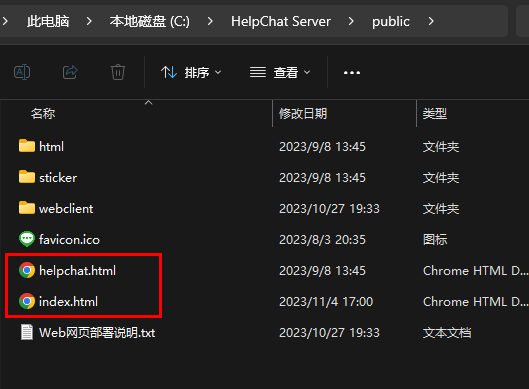
Note the two .html files in the figure above. They are used below.
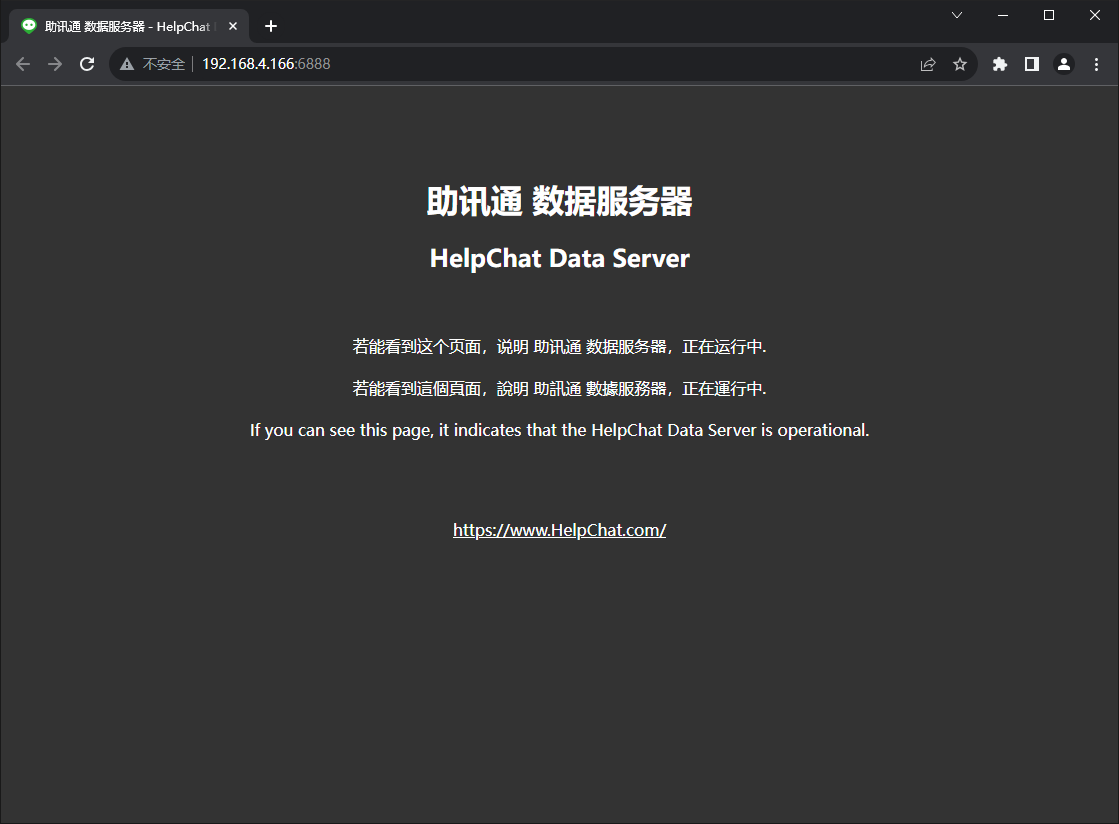
http://192.168.4.166:6888/
http://192.168.4.166:6888/public/
http://192.168.4.166:6888/public/index.html
Any of the addresses above shows the home page in the figure below (the first .html file, index.html). Replace the IP address with the IP of your server.
If the page does not show, check that the server is version 11.2.1 or later.
http://192.168.4.166:6888/public/helpchat.html
This address (the second .html file, helpchat.html) shows the sample web live chat page:
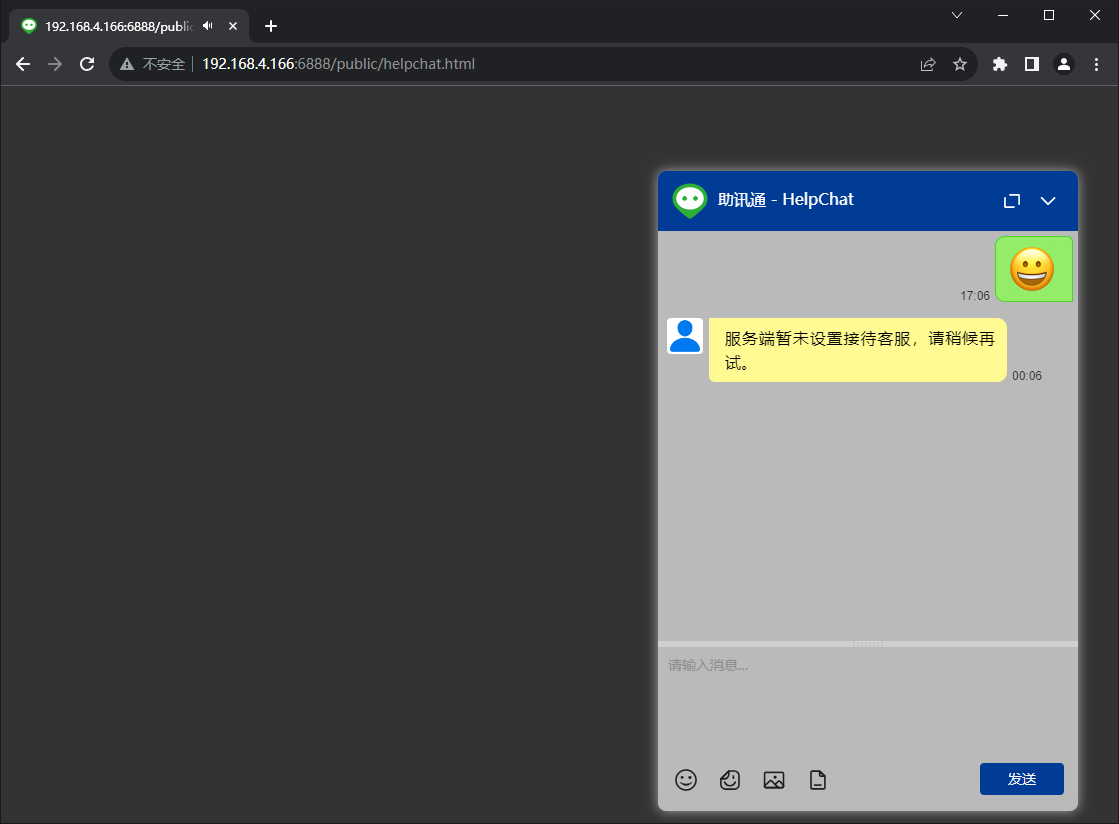
If you enter a message and click send, the system shows the following text in a yellow box:
No customer service account is set on the server. Try again later.
To set the account that receives chats:
Open the desktop or web admin interface, then open Options -> Customer Service Settings, as shown below.
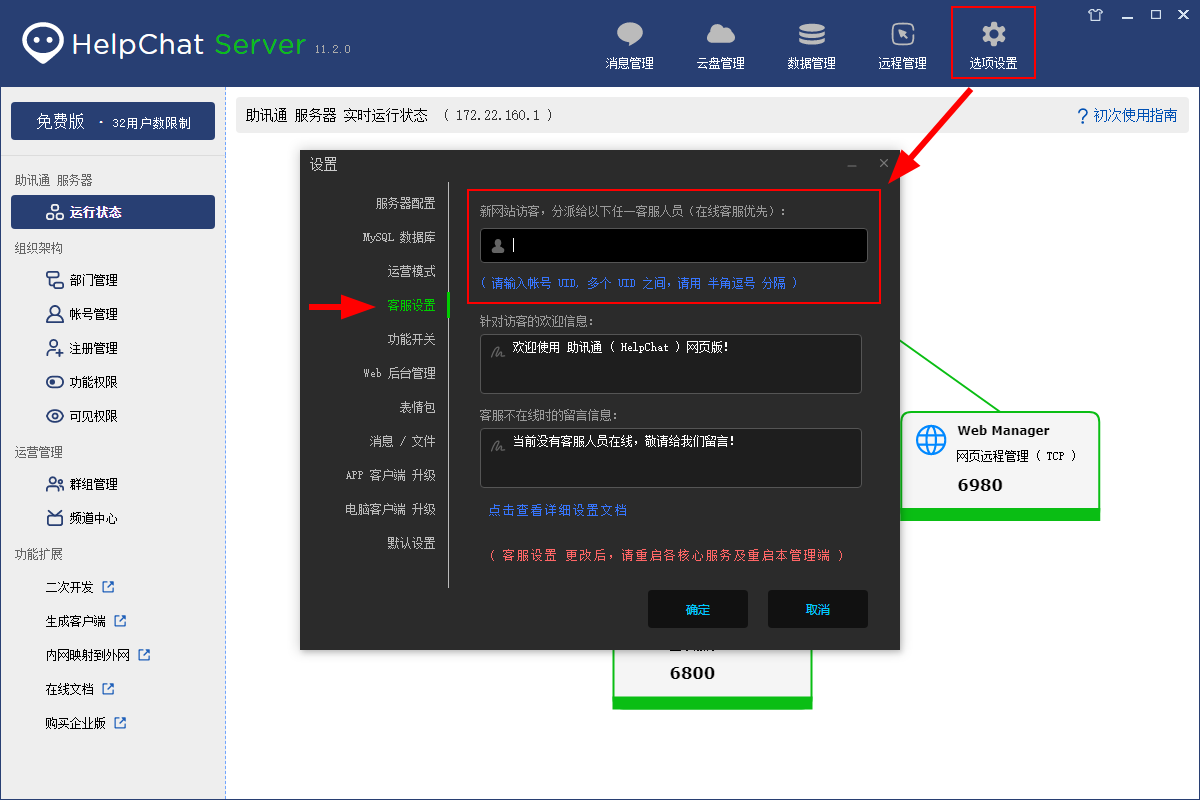
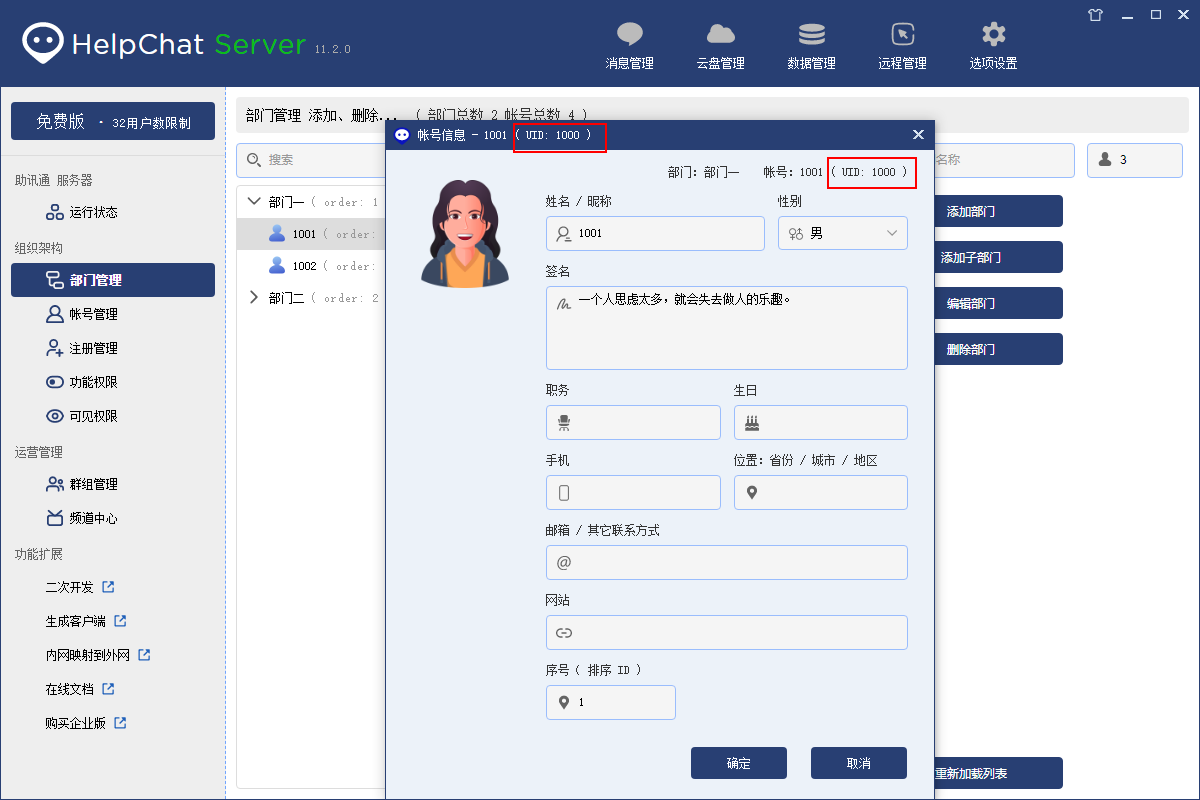
Enter the UID of an existing account here. To find an account UID, double-click the account to open its profile. The UID is in the red box below.
Then go to the following directory:
C:\HelpChat Server\public\webclient
Open the file in the red box below with any text editor:
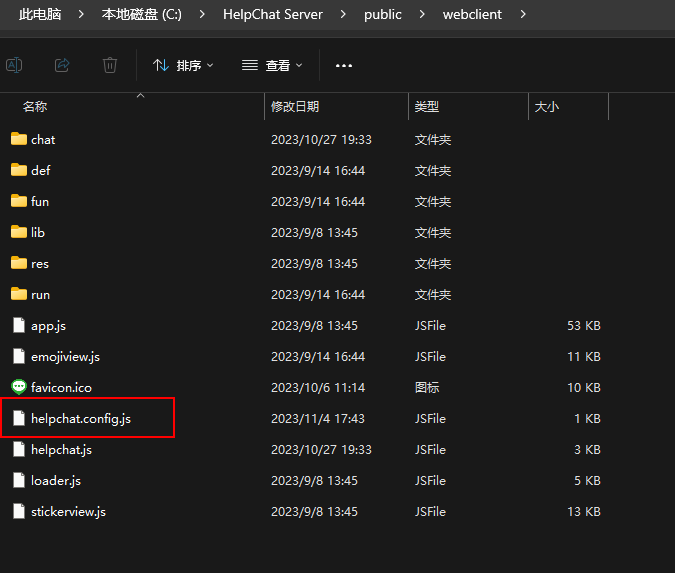
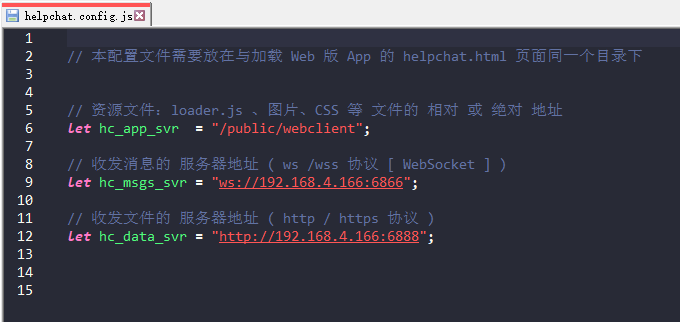
In the helpchat.config.js file, replace the IP address with the IP address of the server computer, or with the domain name if an SSL certificate is configured. Save and close the file.
In the figure below, the server address is 192.168.4.166.
After both settings are done, restart the three server background services. Then go back to the web live chat page and refresh the chat window. The message box is no longer yellow:
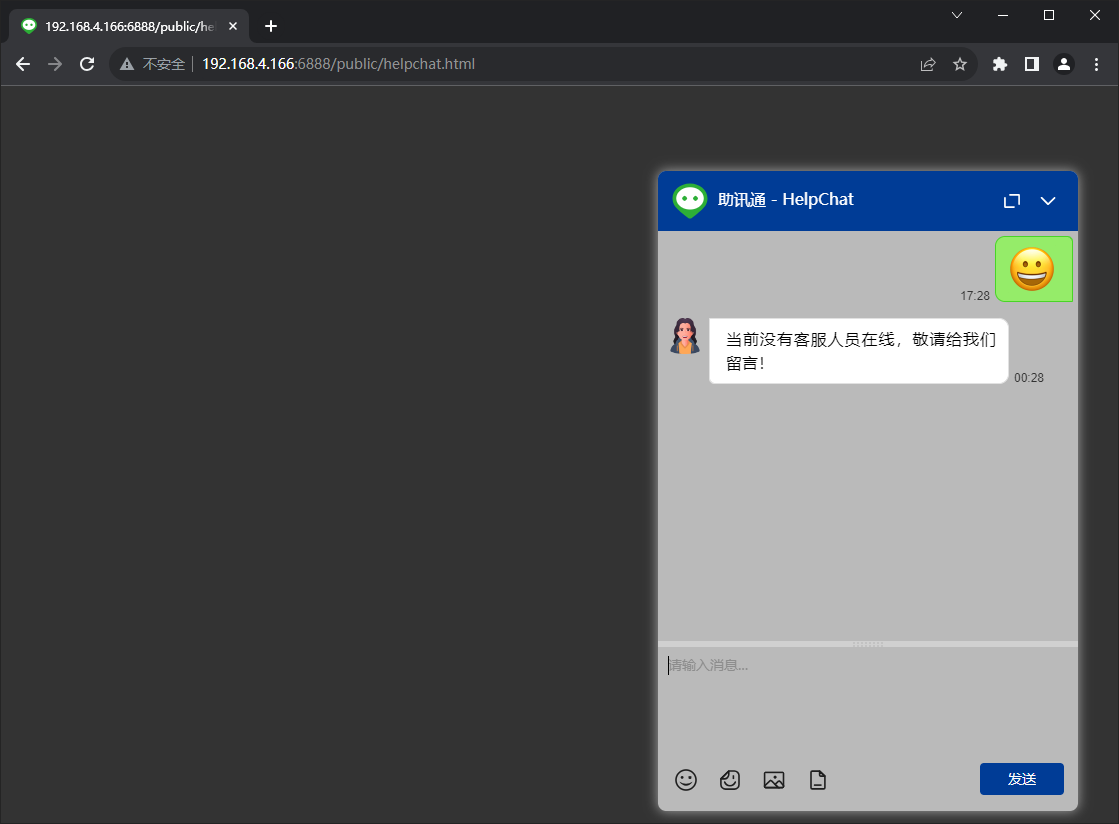
Next, log in to the receiving account with the desktop client and refresh the web live chat window again. The prompt text changes as shown below:
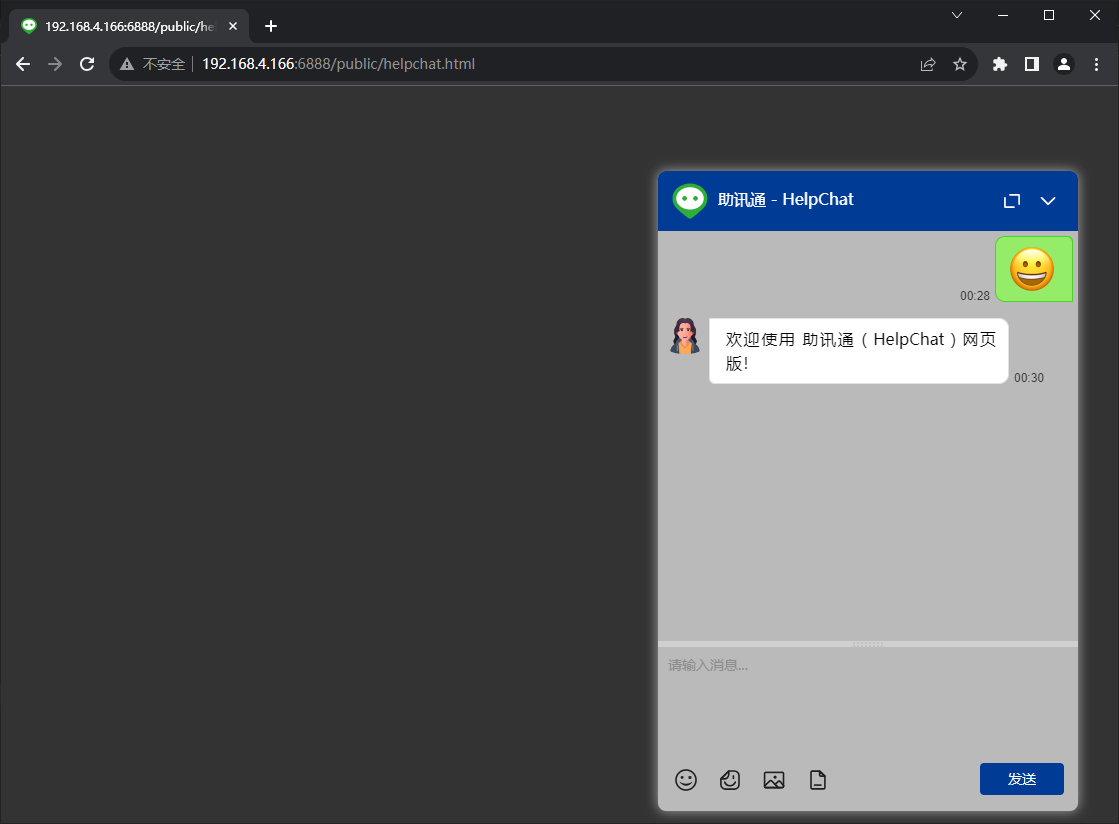
Now website visitors can chat with HelpChat staff:
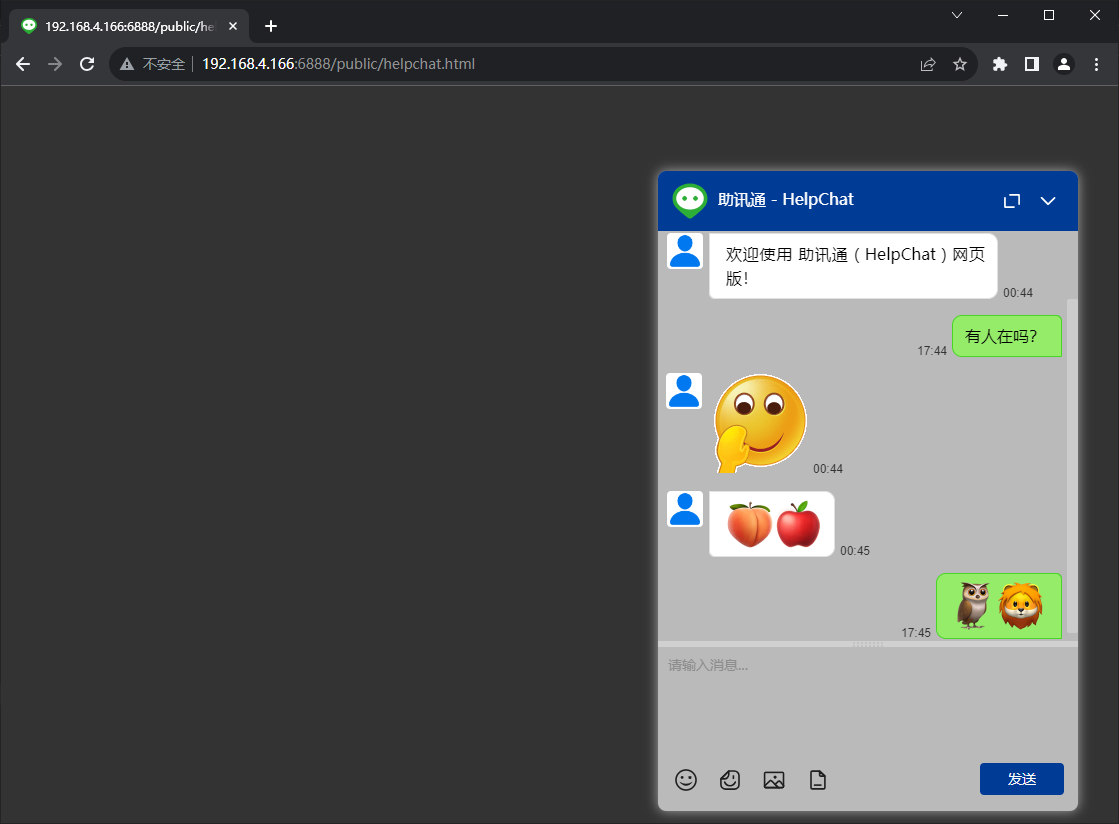
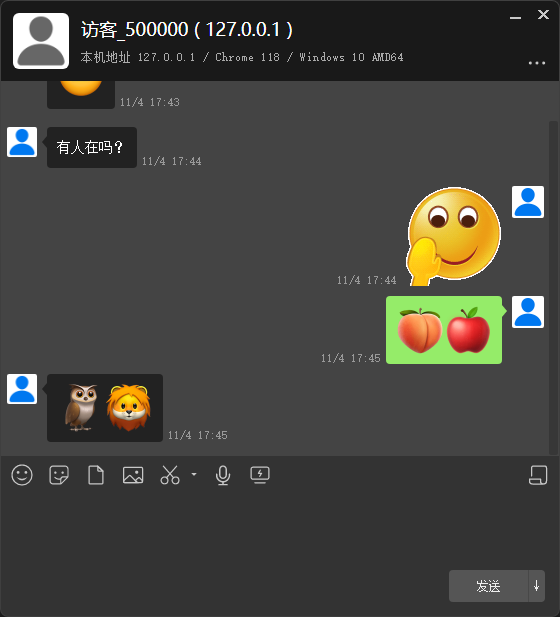
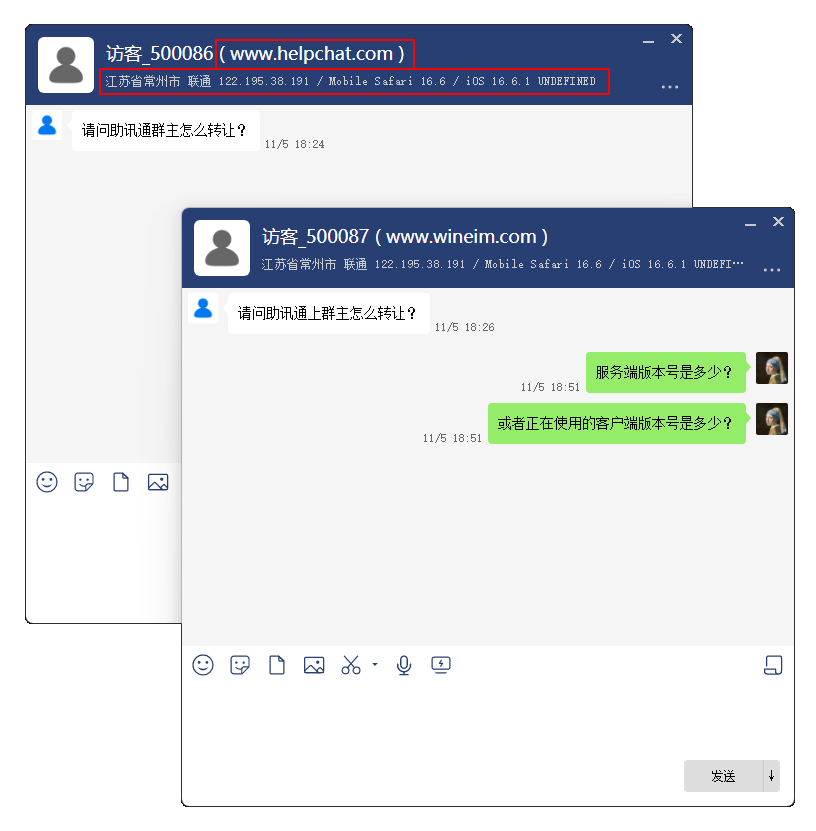
When the server is deployed on the public internet and the staff member receives a message from a visitor, the following information about the visitor is shown:
- The website the visitor is on
- The approximate location of the visitor
- The visitor’s network provider
- The visitor’s browser and version
- The visitor’s operating system and version
- Other additional information
Final step: deploy web live chat on any website
Upload the whole webclient directory under C:\HelpChat Server\public to the root directory of the website, then edit the configuration file helpchat.config.js in the webclient directory.
In the first configuration line in the figure below, the public part before /webclient/ has been removed from the path.
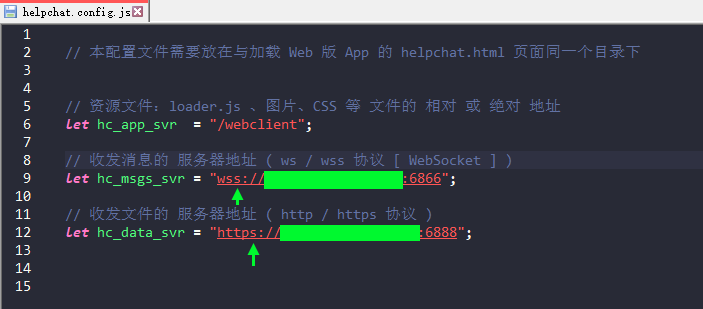
At the places marked by the green arrows: if the website has an SSL certificate, use wss and https. If not, use ws and http. Replace the green bars with the IP or domain name of your server.
Note: Keep the SSL certificate configuration of the HelpChat server in sync. For details, see SSL certificate deployment.
Finally, open the second .html file mentioned at the start of this page, helpchat.html. Copy the following line to the home page of the website, before </body>, as in the sample file below:
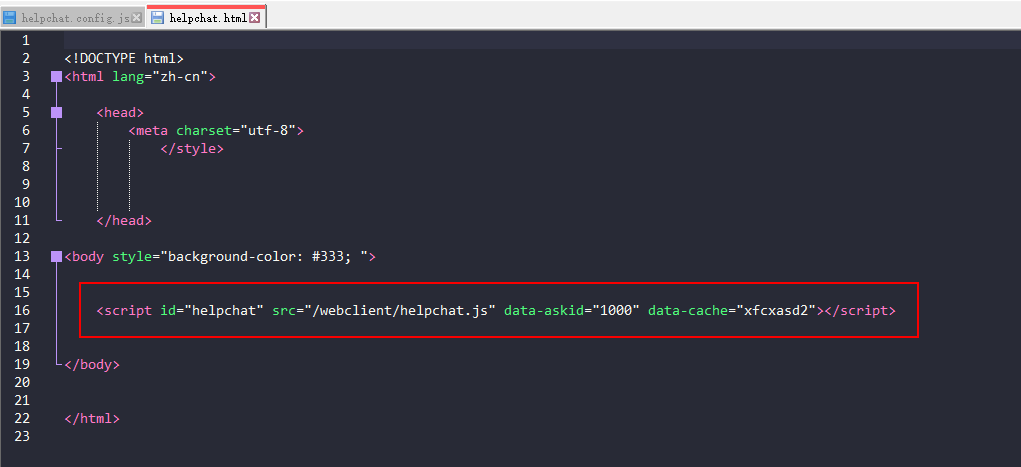
<script id="helpchat" src="/webclient/helpchat.js" data-askid="1000" data-cache="xfcxasd2"></script>
Note 1: data-askid=“1000” has no effect at present. It is a reserved parameter and can be ignored.
Note 2: The value after data-cache= is any random number or letters, up to 16 characters.
The image files for the live chat button at the lower right, and the values that position the button on the page, are in the following files:
Customize interface icons and colors
\webclient\res\img\helpchat.png
\webclient\res\img\helpchat.svg
Button position:
helpchat_button_ex in the\webclient\res\css\config.cssfile
Add the following to the config.css file and change the color values after background or color. The !important at the end must stay.
The value after background: below is a gradient. For a solid color, use the CSS background-color: property instead.
Change the title bar color and the button color
.helpchat_chat_title {
background: linear-gradient(to right, rgb(66, 64, 65), rgb(33, 34, 48)) !important;
}
.helpchat_chat_send_but {
color: #f4c31c !important;
background: linear-gradient(to bottom, #424041, #232431) !important;
}
Change the title “助讯通 - HelpChat”
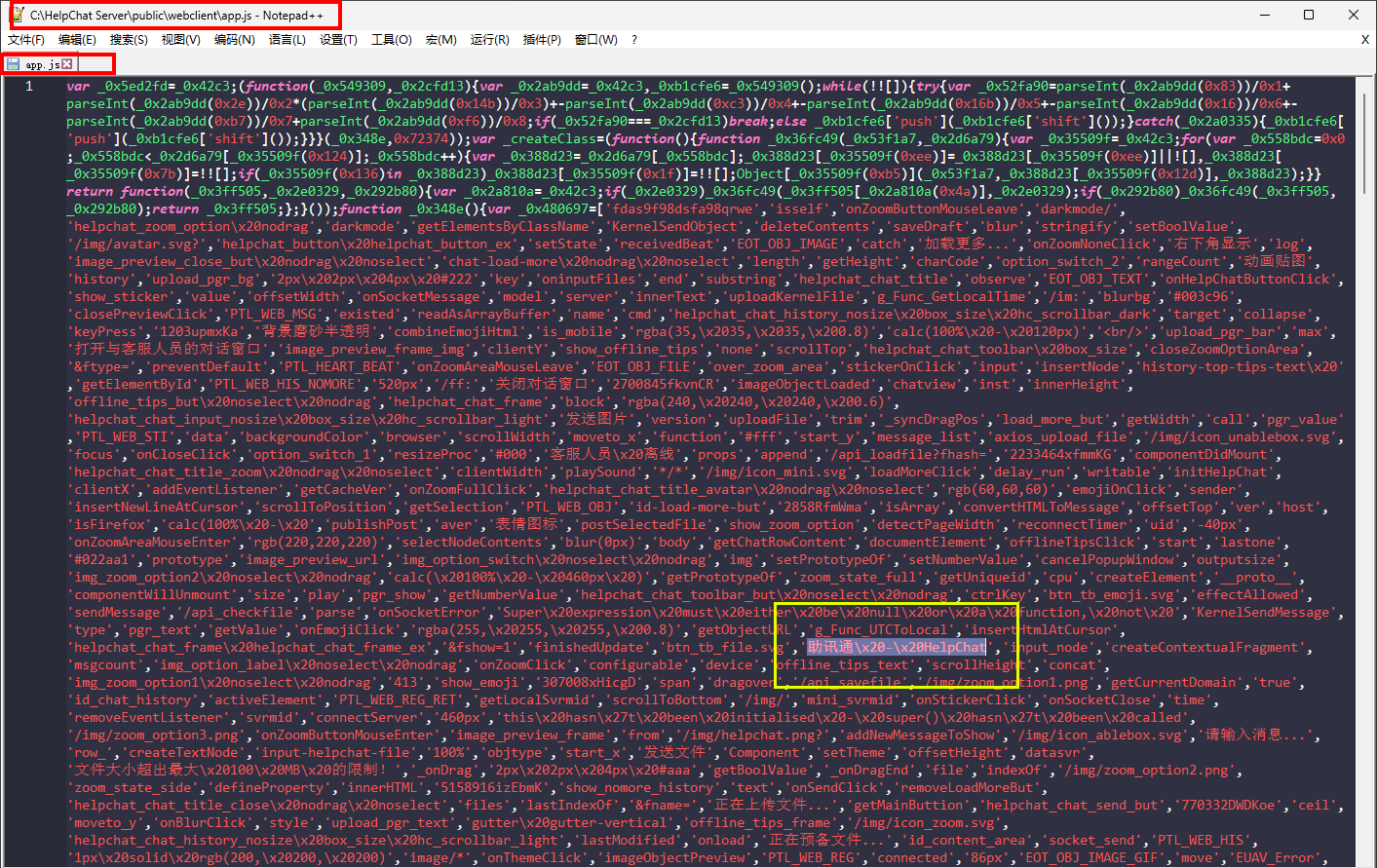
Open the
\webclient\app.jsfile, search the whole file for助讯通\x20-\x20HelpChat, and replace it with the string you want
(see the figure below)
For other custom features or interface development, contact us.